Installation
Install Joppa on macOS or Linux, get its certificate authority trusted, let Joppa resolve .test domains, then uninstall it.
Download
Get the latest version from the download page:
| System | File |
|---|---|
| macOS (Apple Silicon and Intel) | .dmg: drag Joppa into Applications |
| Linux x86_64 | .AppImage (portable, make it executable: chmod +x joppa-*-amd64.AppImage) or .deb (Debian, Ubuntu: sudo apt install ./joppa-*-amd64.deb) |
| Arch Linux x86_64 | The joppa-bin package, built by makepkg (in an empty folder): curl -LO https://download.getjoppa.com/latest/PKGBUILD && makepkg -si. Run it again to update |
First launch on macOS
Joppa is not signed by Apple yet, so macOS blocks the first launch. That’s expected, and it only asks once.
- Open Joppa from Applications. macOS shows ““Joppa” Not Opened”: click Done, not Move to Trash.
- Open System Settings › Privacy & Security and scroll down to Security.
- Next to ““Joppa” was blocked to protect your Mac”, click Open Anyway.
- Confirm with Open Anyway, then your password or Touch ID.
The download page shows these steps with pictures.
On first launch, Joppa creates its config folder and its certificate authority, and starts the HTTPS proxy. It also installs Vite+ with Node LTS and bun, in the background, for JavaScript projects (see Node, bun and PHP versions). It then lives in the menu bar: closing the window doesn’t stop it. On a new Mac, git comes with Apple’s command line tools: Install git, in the New project window, installs them (see New project from a template).
Trust the certificate
Joppa signs a certificate for each domain with a local certificate authority (CA). For the browser to show the padlock, your system must trust that authority. You do this only once, with your password.
On the first launch, Joppa asks for it straight away: type your password in the system’s prompt. That’s it. If you cancel, a banner at the top of the window reminds you: click Approve. Later hides the banner until the next launch; the status bar’s CA … not trusted cell opens the same button in one click, and Settings › Certificate authority keeps Approve the authority.
On macOS, the button adds the CA to your login keychain, with your own trust settings (the ones Safari and Chrome read); the command below adds it to the System keychain.
Prefer the terminal? Settings also shows the exact command for your machine, with a button to copy it.
macOS
sudo security add-trusted-cert -d -r trustRoot -k /Library/Keychains/System.keychain \
  "$HOME/Library/Application Support/joppa/ca/rootCA.pem"
Joppa checks trust on its own: the status bar switches to CA ok as soon as it’s done.
Linux
The Approve button picks the right folder for your distribution. By hand:
Debian, Ubuntu:
sudo cp ~/.config/joppa/ca/rootCA.pem /usr/local/share/ca-certificates/joppa-rootCA.crt
sudo update-ca-certificates
Arch, Manjaro:
sudo cp ~/.config/joppa/ca/rootCA.pem /etc/ca-certificates/trust-source/anchors/joppa-rootCA.crt
sudo update-ca-trust
Fedora:
sudo cp ~/.config/joppa/ca/rootCA.pem /etc/pki/ca-trust/source/anchors/joppa-rootCA.crt
sudo update-ca-trustPorts 80 and 443
The proxy listens on 127.0.0.1, port 443 (HTTPS) and 80 (redirect to HTTPS). It only accepts connections from your machine.
- macOS: nothing to do.
- Linux: ports below 1024 need a special permission. If Joppa can’t open them, it shows the command to run:
sudo setcap cap_net_bind_service=+ep /path/to/joppaIf another server already holds the port (Lerd, Laravel Herd, Valet, Apache, DDEV, a container…), the red banner names it and offers to stop it cleanly: see Ports 80 and 443 in use. If only port 80 is unavailable, the proxy still runs; the HTTP → HTTPS redirect is simply disabled.
Resolving .test domains
The browser needs to know that myproject.test points to your machine. Joppa takes care of it: it ships a small DNS server that answers 127.0.0.1 (and ::1) for every .test name, on 127.0.0.1:15353, and only for those. All that’s left is to tell the system to send those names to it, with one file, written once with your password.
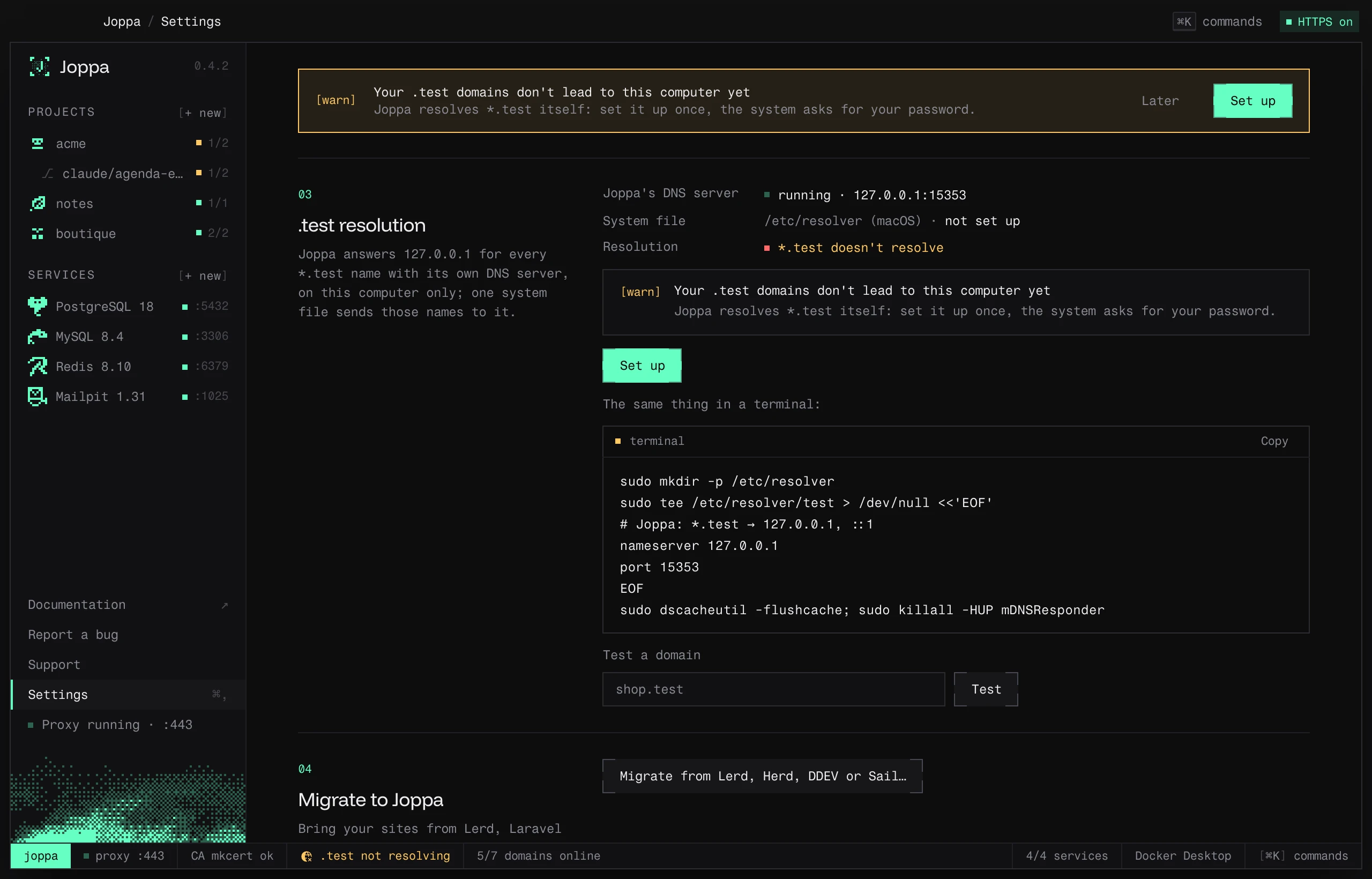
On the first launch, if .test doesn’t resolve yet, Joppa asks for it straight away, after trusting the certificate: type your password in the system’s prompt. If you cancel, a banner reminds you (Set up), the status bar’s .test not resolving cell opens the same button, and Settings › .test resolution keeps it.
| System | File written by Joppa |
|---|---|
| macOS | /etc/resolver/test: nameserver 127.0.0.1 and port 15353 |
| Linux with systemd-resolved (Ubuntu, Fedora…) | /etc/systemd/resolved.conf.d/joppa.conf: DNS=127.0.0.1:15353 and the routing domain ~test |
| Linux with NetworkManager and dnsmasq | /etc/NetworkManager/dnsmasq.d/joppa.conf: server=/test/127.0.0.1#15353 |
Joppa then flushes the system’s DNS cache (or reloads systemd-resolved / NetworkManager). Only .test names go through it: the rest of your DNS is left alone.
Prefer the terminal? Settings › .test resolution shows the exact commands for your machine, with a button to copy them. On macOS:
sudo mkdir -p /etc/resolver
printf '# Joppa\nnameserver 127.0.0.1\nport 15353\n' | sudo tee /etc/resolver/test
sudo dscacheutil -flushcache; sudo killall -HUP mDNSResponderOn Linux without systemd-resolved or NetworkManager with dnsmasq, Joppa can’t set up the resolver: add each domain to /etc/hosts (127.0.0.1 myproject.test).
A container runtime (optional)
Domains and HTTPS need nothing else. For services (PostgreSQL, Redis, Mailpit…), install one of these runtimes: OrbStack, Docker Desktop, Colima or Podman. See Container runtimes.
Check
The status bar at the bottom of the window sums it all up:
joppa proxy :443 CA joppa ok .test ok 2/2 domains online 1/1 serviceYou’re ready for getting started.
Updating
Joppa looks for a new version at launch, each time you open its window again, then every six hours, and downloads it in the background. A green card then shows at the bottom of the sidebar: “Joppa x.y.z is ready”. Click Update now: Joppa installs the new version and restarts.
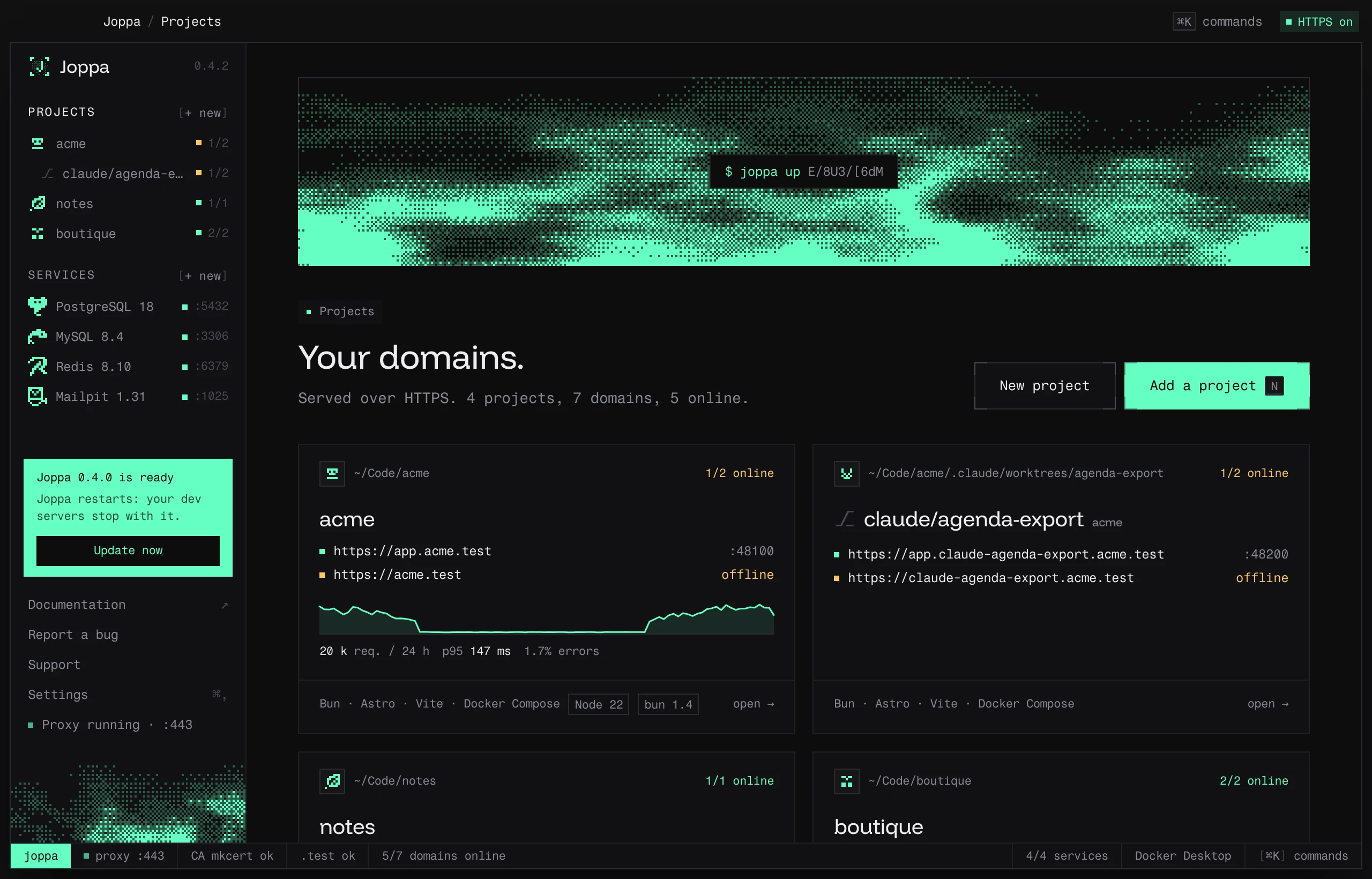
Every download is checked against Joppa’s signature before it replaces the app. To pick when it downloads, turn off Download new versions automatically in Settings › Updates: the card then offers Download and install. Check for updates, in the same place, checks right away.
On Linux, the AppImage updates the same way. An install from the .deb or the Arch package can’t replace itself: the card opens the download page. On Arch, run curl -LO https://download.getjoppa.com/latest/PKGBUILD && makepkg -si again in the same folder.
Uninstall
Joppa uninstalls from the app or from the terminal; either way you pick what goes, and your projects are left untouched.
- From the app: Settings › Uninstall › Uninstall Joppa…, tick what goes, then Uninstall and quit.
- From the terminal:
joppa uninstall --dry-run   # what would go
joppa uninstall             # asks for confirmation
What goes: the joppa command, the assistants’ MCP server, the PHP and Node blocks of the shell profile, the services’ containers, the CA approval and the .test resolver file (your password), the license (this Mac’s seat is freed), Joppa’s folder and the app itself. The services’ data (databases, mails) only goes if you tick it, or with --volumes. Details: Files and folders › Removing everything and The joppa command › Uninstall.