Processes
Let Joppa start your dev servers and Compose containers in the right order, with a built-in terminal, a start when Joppa opens and a relaunch after a crash.
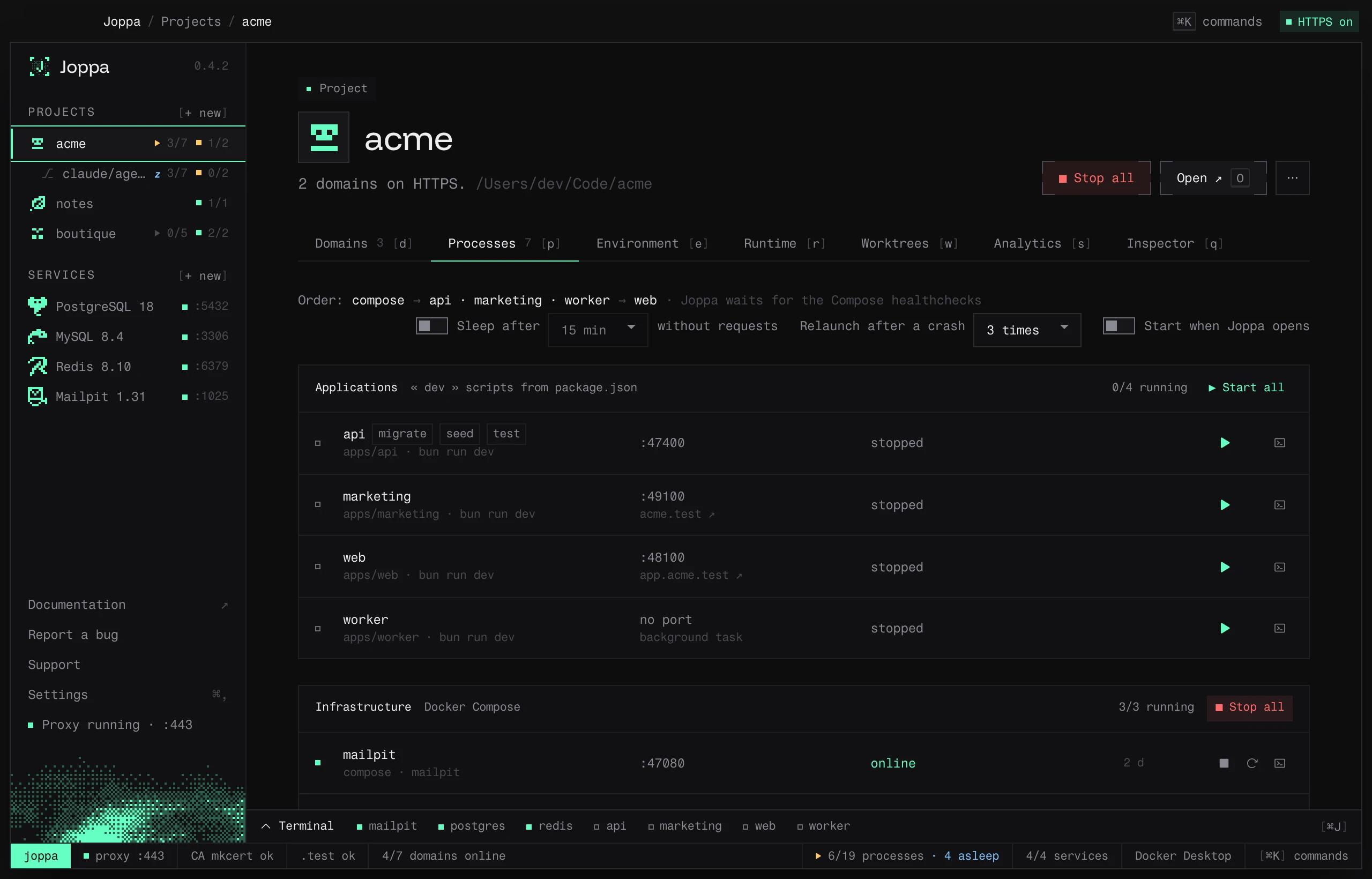
The Processes tab (P) runs the project from Joppa: its dev servers (dev scripts from package.json, Nx targets, PHP server) and its infrastructure (Docker Compose services). Each process has its own status, port and logs.
Analyze the project
The first time, click Analyze the project, at the top of the project page (next to Open) or in the tab. Until the analysis is done, Joppa starts nothing: the domains stay offline until you start the server. Joppa reads package.json, the workspaces and the Docker Compose file, then shows What Joppa understood of the project. Nothing starts before you confirm.
| Column | Contents |
|---|---|
| In “Start all” | Uncheck a process so it doesn’t start with the others; you can still start it on its own |
| Process | Its name: web, api, postgres |
| Command | bun run dev, or the Compose service |
| Port | Editable |
| Where the port comes from | script, config, code, .env, compose or default |
| Ready when | For a dev server with a port: the HTTP path Joppa asks to know it’s ready (/ by default), or tcp |
The “waits for …” line shows dependencies: a dev server waits until the Compose containers it depends on are ready.
+ action, under a dev server’s command, adds actions to it.
How the port is found
In this order:
- a variable with a default value in the script (
${PORT:-3000}): Joppa fills it in; --port,-porPORT=in the script;port:in the framework config (vite.config,astro.config), including on a single line (server: { port: 5400 }), oroptions.portof an Nx target;PORTin the.env;- the framework’s default port: Vite and VitePress 5173, Astro 4321, Next.js, Nuxt, Create React App and Docusaurus 3000, Angular 4200, Wrangler 8787, Vue CLI 8080, Gatsby 8000, Storybook 6006, Expo 8081.
For another Node server, Joppa looks for the port in the code (.listen(3000), process.env.PORT ?? 3000).
The package manager comes from the lockfile, otherwise from the packageManager field, otherwise npm.
Each package’s script
Joppa takes the package’s dev script; failing that, develop, serve, or a start that runs a dev server (react-scripts start, ng serve, expo start…). A production start (node dist/server.js) is ignored.
The PHP server
| Project | Clue | Command |
|---|---|---|
| Laravel | artisan file |
php artisan serve --host=127.0.0.1 --port=${SERVER_PORT:-8000} |
| Symfony, other PHP | public/index.php and composer.json |
php -S 127.0.0.1:${PORT:-8000} -t public |
The port comes from SERVER_PORT (Laravel) or PORT in the .env, otherwise 8000. The php is the one of the pinned version.
Laravel workers
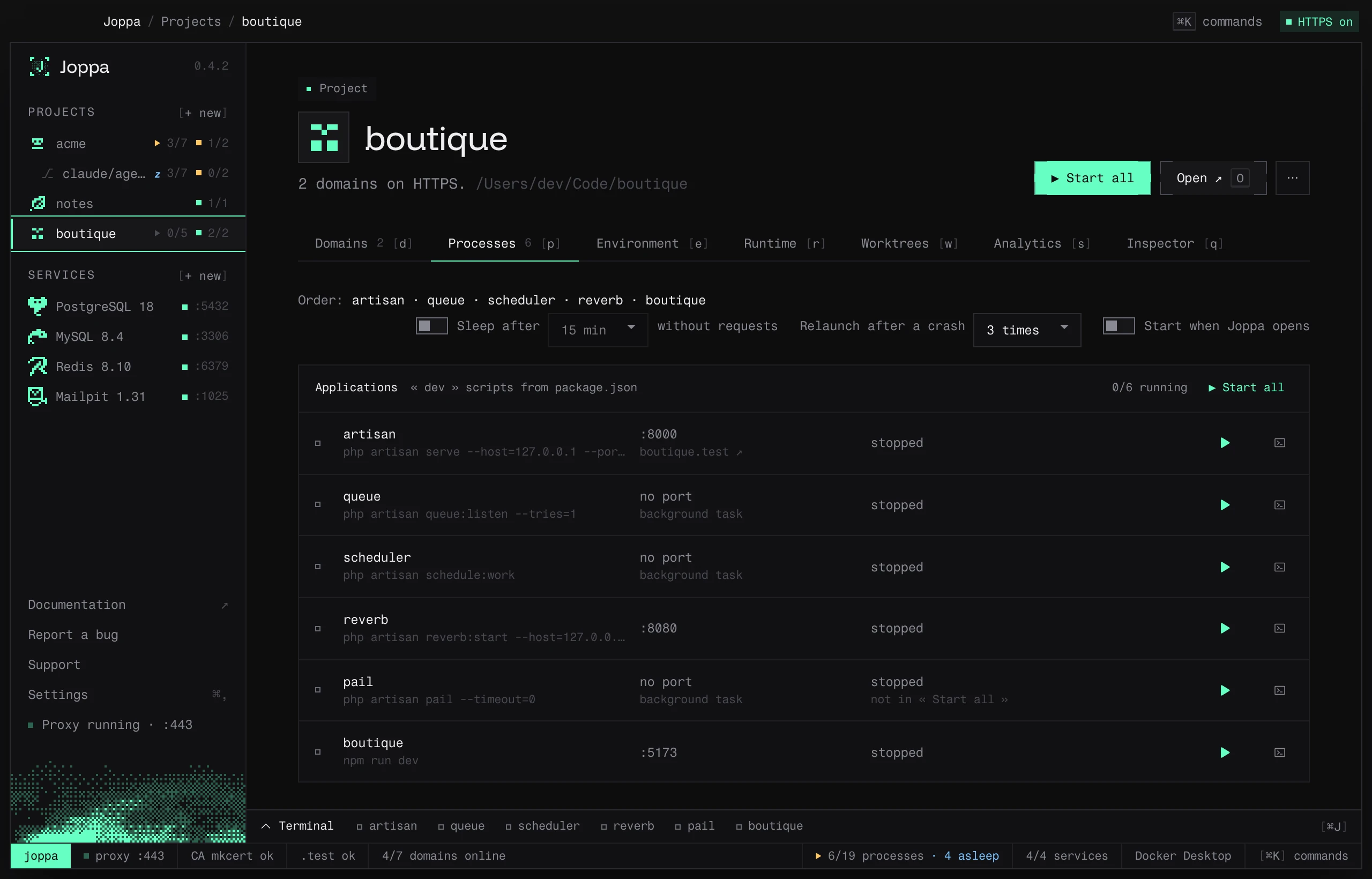
Next to php artisan serve, Joppa offers the background processes the application uses, read from composer.json, the .env and the code:
| Process | When | Command | Checked |
|---|---|---|---|
queue |
QUEUE_CONNECTION isn’t sync (Laravel 11 and later: database by default) |
php artisan queue:work, or the one from composer run dev (queue:listen --tries=1 in the starter kits, which reloads the code for each job) |
yes; offered unchecked with sync |
horizon |
laravel/horizon is installed |
php artisan horizon, instead of queue when the queue goes through Redis |
if QUEUE_CONNECTION=redis |
scheduler |
always | php artisan schedule:work |
if the application schedules a task (Schedule:: in routes/console.php, $schedule-> in the Kernel) |
reverb |
laravel/reverb is installed |
php artisan reverb:start --host=127.0.0.1 --port=${REVERB_SERVER_PORT:-8080} |
if BROADCAST_CONNECTION=reverb |
pail |
laravel/pail is installed |
php artisan pail --timeout=0 |
no: Joppa already shows the logs |
These are processes without a port, except Reverb: its port comes from REVERB_SERVER_PORT in the .env, otherwise 8080, and Joppa sets the variable so a worktree can move it. An unchecked process stays in the list and can be started by hand.
Monorepos
Joppa finds the packages where the repository declares them:
| File | Form |
|---|---|
package.json |
workspaces (npm, yarn, bun), as a list or { "packages": [...] } |
pnpm-workspace.yaml |
packages: |
lerna.json |
packages (packages/* by default) |
nx.json |
every project.json in the repository, its serve / dev targets, and those the Nx plugins infer (@nx/vite/plugin, @nx/next/plugin) |
The patterns apps/*, packages/** (at any depth) and the exclusions !packages/legacy are understood; node_modules, dist and hidden folders are ignored. An Nx target runs with nx run <project>:<target>.
The root dev script says which task to run in each package, and in which ones:
| Root script | Task | Packages |
|---|---|---|
turbo dev, turbo run dev, turbo watch dev |
dev |
all those that have it |
turbo run start:dev --filter=web... |
start:dev |
web |
nx run-many -t serve -p shop admin |
serve |
shop, admin |
nx serve shop, nx run shop:serve |
serve |
shop |
pnpm -r --parallel dev, pnpm --filter ./apps/* dev |
dev |
all / those in apps/ |
bun run --filter '@acme/*' dev |
dev |
those in the @acme scope |
npm run dev -w apps/web -w apps/api |
dev |
web, api |
A filter names a package by its name, its folder or a pattern (apps/*, @acme/*); Turborepo’s ..., ^, {…} and !docs exclusions are understood. A package left out of the root dev stays unchecked, unless a domain points to it.
When the root dev script starts several apps at once, Joppa offers:
- Run them separately · one status and one log per app (recommended);
- As is: the root command, in a single terminal.
Save: on this machine or for the team
- Save keeps the configuration in Joppa, on this machine.
- Check Write joppa.toml in the repository for the team to share it: it’s written to a
joppa.tomlfile at the project root, for you to commit. When this file exists, it takes precedence. See the joppa.toml reference. To share the domains, services, database and versions too, use the Share the configuration in joppa.toml link under the list of processes.
Save and start starts everything right away.
Start and stop
- ▶ Start all / ■ Stop all at the top of the project page, or from the ⌘ K palette (“Start all: myproject”). As soon as one process runs, the button becomes ■ Stop all.
- Each process can be started, stopped or restarted on its own, in the tab or from the palette.
Processes are grouped into Applications (“dev” scripts) and Infrastructure (Docker Compose, started with docker compose up -d --wait: Joppa waits for the healthchecks). The header shows the start order and how many are running. Each group has its own ▶ Start all / ■ Stop all button, which only acts on its processes: start the infrastructure without the applications, for example. Like the project’s button, it leaves out the processes unchecked from “Start all”.
| Status | Meaning |
|---|---|
| stopped | — |
| stopping | Stop asked, the process hasn’t exited yet |
| waiting | Waiting for a process it depends on |
| starting | Started, not answering yet (see When a process is ready) |
| running | Started (process without a port) |
| online | It answers an HTTP request on its port |
| failed | Exited with an error |
| started outside Joppa | The port is already served by a process Joppa didn’t start |
| no Docker | Compose service, but no runtime is running |
| asleep | Stopped by Joppa for lack of requests: the next one wakes it (see Sleep when idle) |
The ▶ 6/7 counter next to the project, in the sidebar and on its card in the Projects page, says how many processes of « Start all » are running; the status bar at the bottom of the window adds up every project (6/7 processes). The colour of the ▶: green when everything runs, orange when some are stopped, starting or started outside Joppa, red only when one has failed. Hover the counter for the details. A blue z replaces the ▶ when the project’s dev servers are asleep.
If the port is taken by another program, Joppa tells you and offers Free the port.
Stopping sends SIGTERM, then SIGKILL after 6 seconds, to everything the script started. A dev server that keeps running after the script that started it ends is still followed by Joppa: it keeps its log, its status and its stop button.
From the terminal: joppa procs, joppa start|stop|restart <project> [process] and joppa logs <project> [process] (see The joppa command). An assistant like Claude Code or Cursor does the same with the list_processes, start_process, restart_process, process_logs and run_process_action tools of the MCP server.
Start when Joppa opens
The Start when Joppa opens switch runs a “Start all” for the project every time Joppa launches. It’s a preference of your machine: it’s never written to joppa.toml.
If a joppa.toml comes in through git pull with changed commands, Joppa does not run them on its own: a notification says the project was not started. Check the commands, then click Start all: starting when Joppa opens then resumes as usual.
Relaunch after a crash
The Relaunch after a crash setting chooses how many times Joppa relaunches a dev server that crashes: never, 1, 2, 3 (default), 5 or 10 times.
- The wait doubles between relaunches: 1 s, 2 s, 4 s, 8 s… up to 30 s.
- The counter resets after 60 seconds of stable running.
- Beyond that, Joppa gives up and says so: “crashed again after 3 relaunches: Joppa gave up.”
- A stop you request cancels a pending relaunch.
This setting only applies to dev servers (not Compose containers) and stays specific to your machine.
Repairing a failed process
When a process stops for good (Joppa gave up after its relaunches, or relaunching is off), a red banner shows at the top of the project page, whatever tab is open: the process, why it stopped and the last lines it printed.
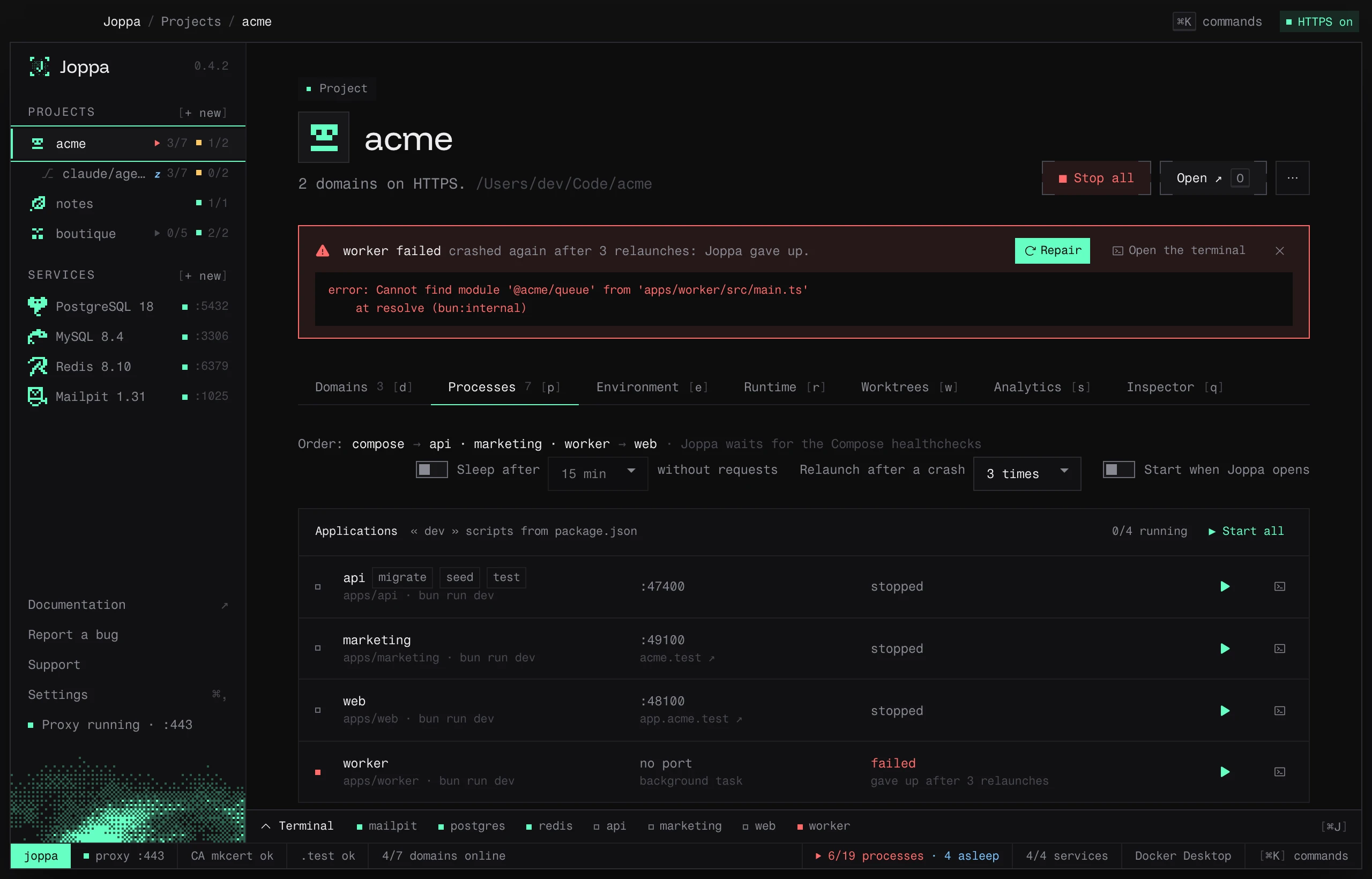
- Repair starts it again, with the ones it depends on, without touching the other processes.
- Open the terminal shows its whole log.
- Dismiss hides the banner until the next failure.
When a process is ready
A dev server with a port is online when it answers an HTTP request, not merely when its port accepts connections: Joppa asks GET / on its port, and any answer counts, even a 404 or a 500. The terminal notes when: “ready in 1.2 s (GET / → 200)”. The processes waiting for it (“waits for …”, dependsOn) only start after that.
The Ready when column of the analysis (the probe field of joppa.toml) changes what Joppa asks:
| Value | Ready when |
|---|---|
| (empty) | GET / gets an answer |
/health, /up… |
That path gets an answer |
tcp |
The port accepts connections |
If the port accepts connections but no HTTP answer comes for 30 seconds, or it answers in another protocol, Joppa takes it as ready anyway. Once it’s ready, Joppa doesn’t ask again: it only checks that the port still answers. Docker Compose services are ready when their healthcheck passes, or when their port answers if they have none.
Sleep when idle
With many worktrees open, each with its dev servers, memory goes fast. Joppa puts to sleep the dev servers of a project nobody uses: after 15 minutes without a request to its domains, it stops them and marks them asleep.
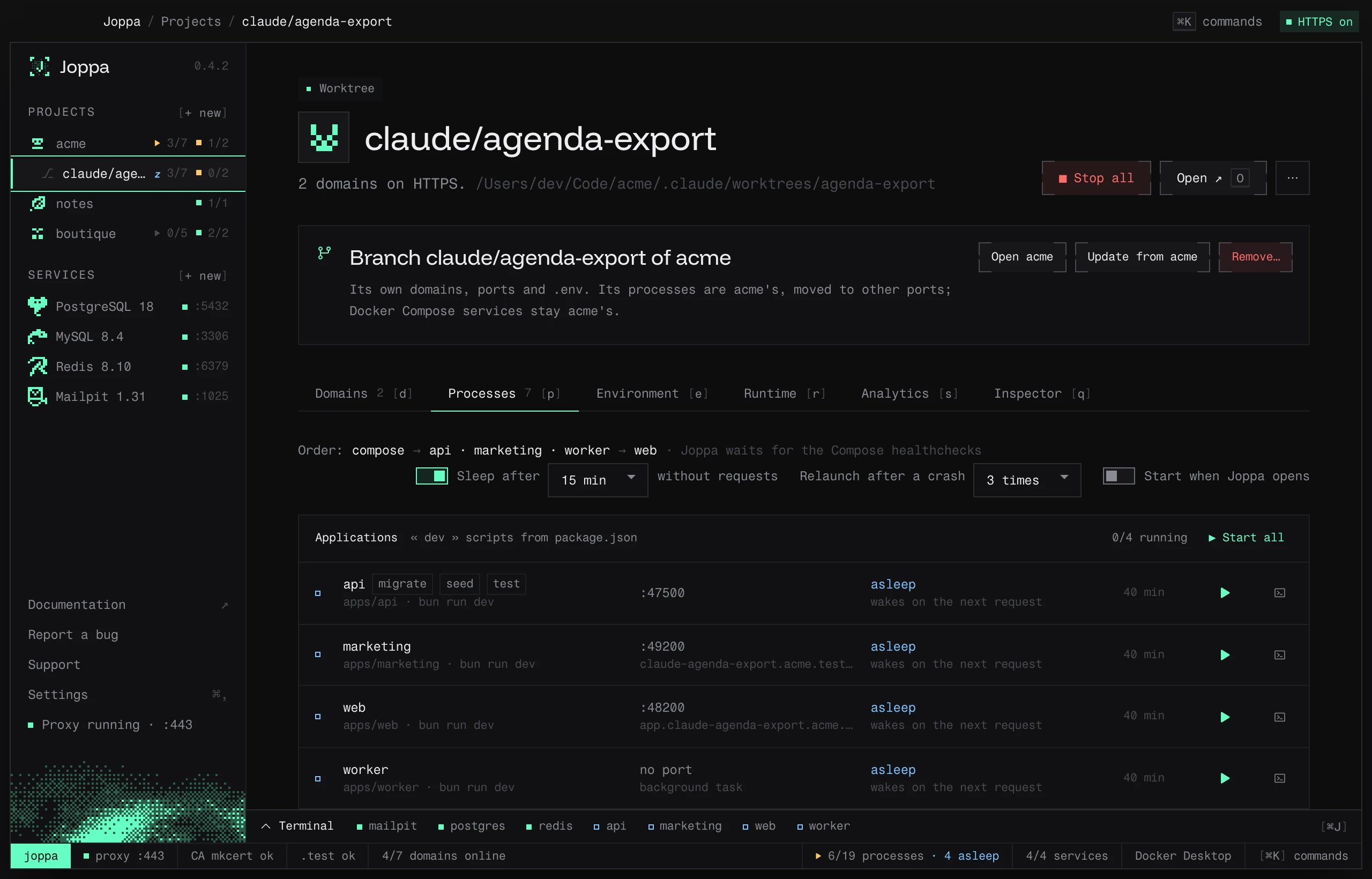
The next request to one of its domains wakes them:
- the proxy holds the request;
- Joppa starts the sleeping dev servers again, with the ones they depend on;
- as soon as the domain’s server is ready, the request goes through.
A page load that would wait more than 3 seconds shows “Waking web…”, which reloads itself every second until the server answers. Other requests (fetch, assets, the HMR WebSocket) wait up to 90 seconds. Vite’s HMR reconnects on its own after the wake.
The Sleep after … without requests switch in the Processes tab sets the delay (5 min to 2 h) or turns sleep off, project by project. It’s on by default for worktree environments, off for other projects. It’s a preference of your machine, never written to joppa.toml.
- Only dev servers go to sleep: Docker Compose containers and Joppa services keep running.
- Joppa doesn’t put a project to sleep while one of its processes is starting, relaunching or running an action, nor a project none of whose domains lead to a dev server (no request could wake it), nor while the proxy is stopped.
- A tab left open without activity doesn’t keep it awake: when you come back to it, the HMR client reconnects and wakes the server.
- ▶ also wakes a sleeping process; ■ Stop all takes it out of sleep: a request no longer starts it.
The asleep state shows in the tab, in the domains’ status column, in the terminal and on the project’s counter (a blue z, and “4 asleep” in the status bar). The list_processes MCP tool returns it as asleep.
Actions
An action is a one-off command attached to a process: migrate → php artisan migrate, seed → php artisan db:seed, test → bun test. It runs in one click, next to the process’s name in the Processes tab or in the bar of the terminal open on that process. Its output goes to the process’s terminal, between “▶ migrate $ php artisan migrate” and “migrate: done” (or “migrate: failed (code 1)”).
- It runs in the process’s folder, with its environment variables, whether the process runs or not.
- A second click while it runs stops it.
- The same action only runs once at a time.
Actions are declared in the analysis (Review the analysis): + action under a dev server’s command, then a name and a command. Joppa suggests migrate, seed and test for Laravel, test and lint for a JavaScript project. They’re written to joppa.toml when the project has one. An assistant runs them with the run_process_action tool of the MCP server.
The built-in terminal
⌘ J opens the terminal at the bottom of the window, from any screen. Collapsed, it shows one status square per process; open, an All tab followed by one tab per process.
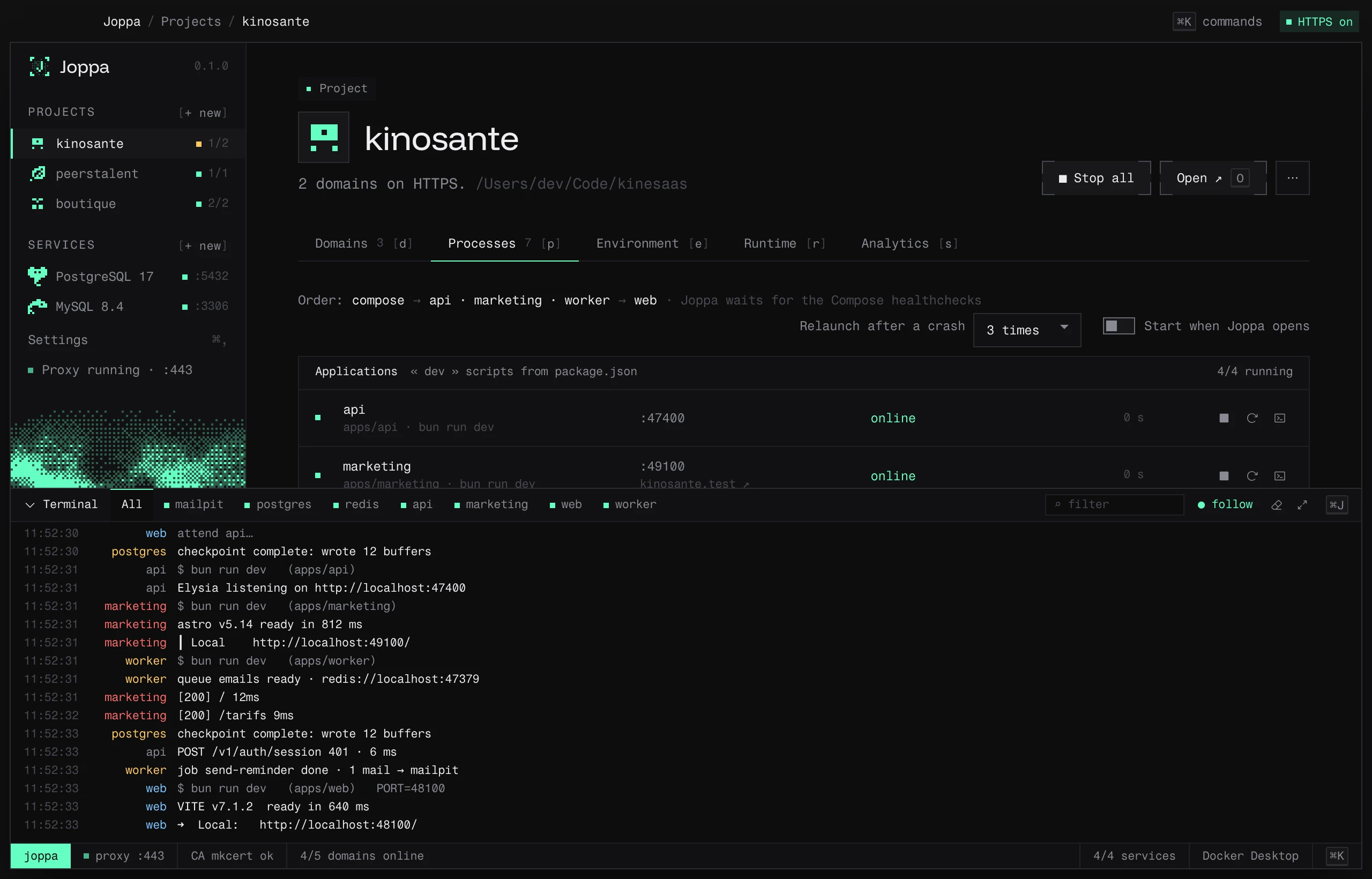
- ⌕ filter: only shows lines containing some text.
- ● follow: sticks to the latest lines.
- Clear, Expand / Shrink.
- Resize: drag the top edge (or ↑ / ↓ on the keyboard); a double-click restores the default height. Joppa remembers the last height.
Joppa keeps the last 5,000 lines of each process. On failure, the terminal offers the useful action: Free the port or Restart.